
Team
A team in Flow provides a grouping / segregation between different users and resources. Anyone is free to create a team in Flow but you should aim to make this as close to the real organisational structure as possible.
Each team is given a “code” Unify’s team code is “UNIFY” - this is pre-pended to tasks to create an easy to remember unique reference for each task. “UNIFY-122”
Roles / Permissions
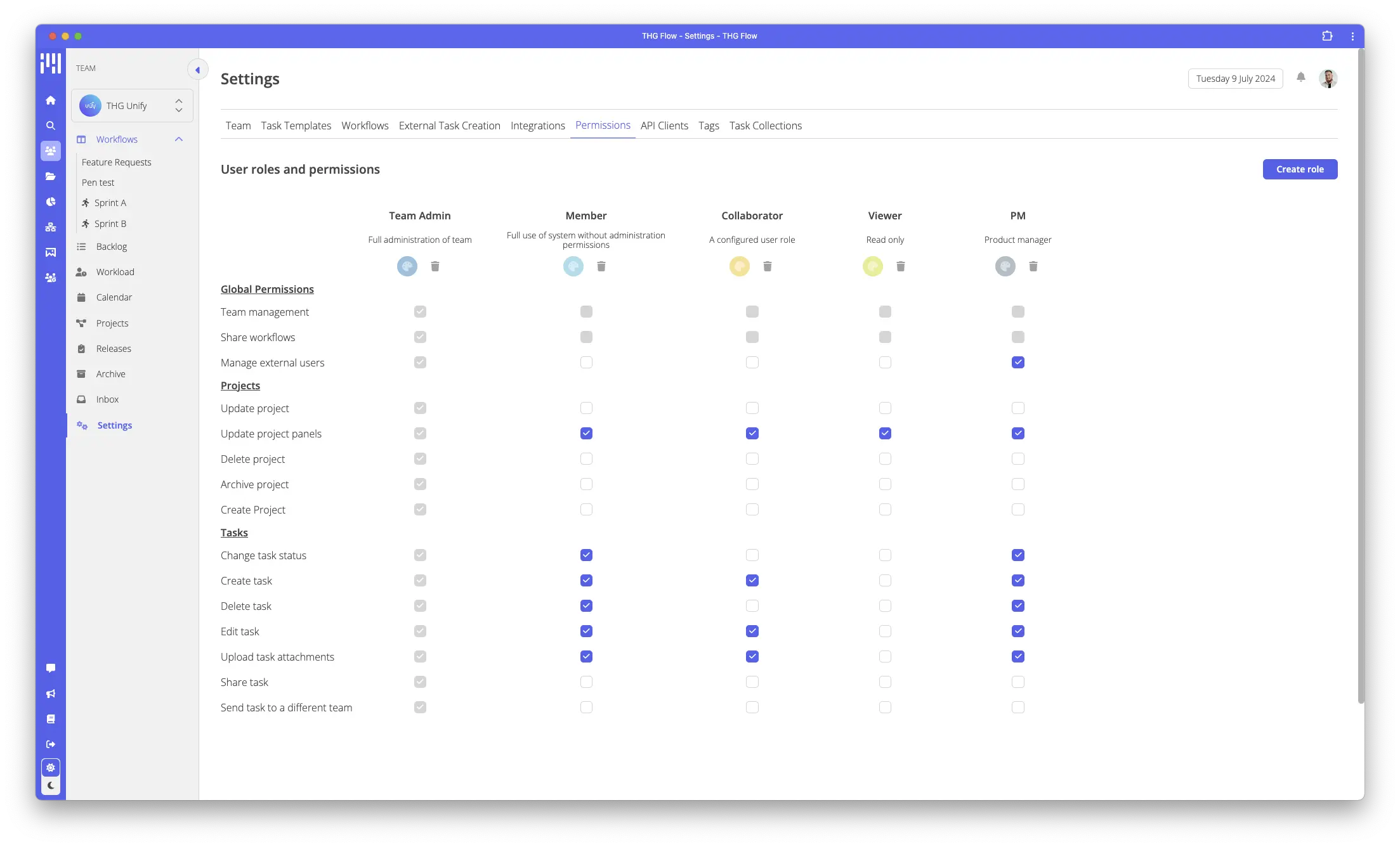
A user can be in multiple teams on Flow and the permissions for a user can be controlled for each team in settings.
By default, Flow comes with “admin” and “member” roles, you can manage the permissions for the member role, the admin role will have all permissions by default.
If you require more roles, you can create them in the roles section of team settings, a user can only have one role assigned to them per team.
Inviting a user
You can invite anyone in your organisation to your team by clicking “add members”.
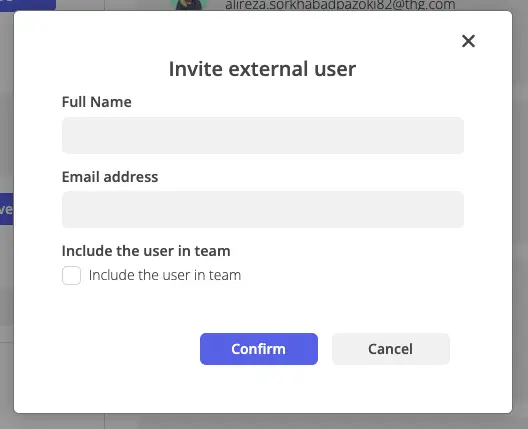
To invite users from outside of the organisation, you can use the “Invite external user” button, this will create a username / password login that the user can use to log in.
The invited user will be sent an email with instructions on how to set their password for the first time. - For support with this, please contact support@thgunify.com
Joining a team
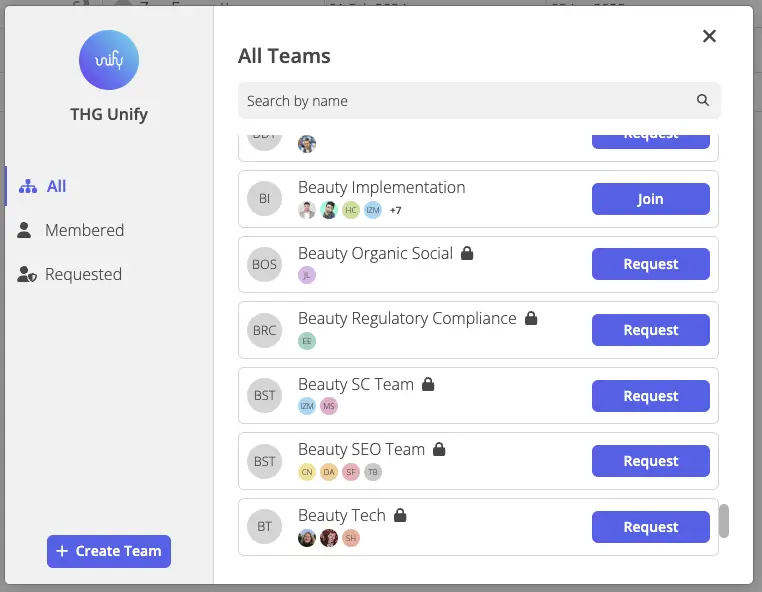
Users can browse all teams within the organisation, teams can be private or public, please see below for explanation
| Type | Description |
| Public | Anyone can join |
| Private | Users can request access, to be granted by an admin of that team |
Setting a team’s division
Your team may be part of a wider division, setting your team’s division helps with upwards reporting to divisional admins and in Portfolio views. You can set the team’s division in the team settings.