
Workflows
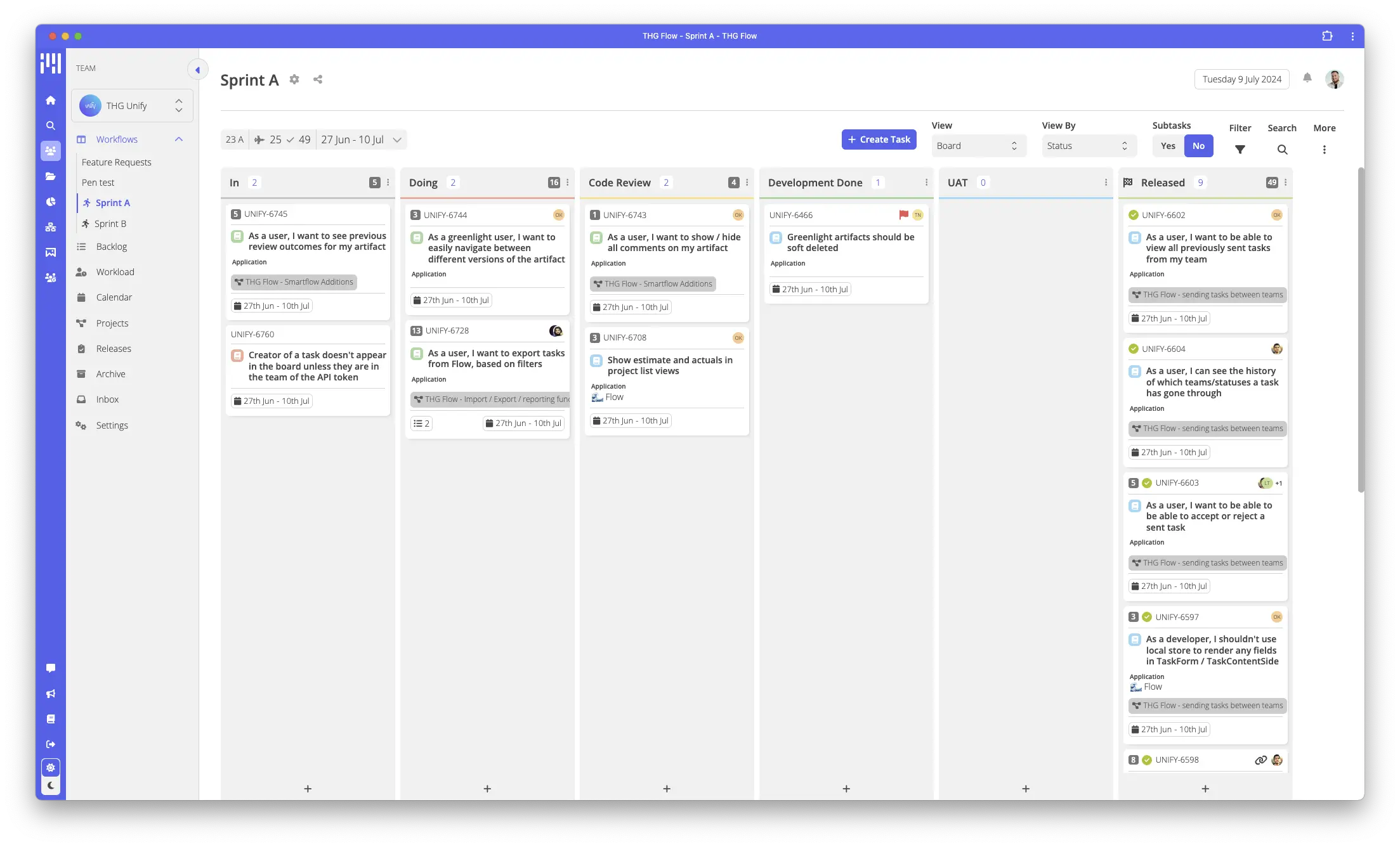
A workflow defines a list of possible statuses that a task can be set to. Commonly, we view the workflow in a Kanban style with a column for each status.
Typically, a workflow defines the process or stages of a task progressing from “waiting to be worked on” through to it’s completion, although you may wish to use statuses to represent other things.
A team in Flow can have as many workflows as required and the tasks on workflows may be from different projects, some may not have projects at all.
Statuses can be ordered, top - bottom = left to right
Status Types
Each status / column in a workflow can be given a “status type”. This helps flow provide a high level overview of the status of a task and powers certain views including the Kanban view for projects.
If you use sprints, you should set at least one status on the workflow to be of type “completed” - this allows Flow to track an overall burndown / number of completed points for a sprint.
Max ticket count
Add a max ticket count to add a soft limit to how many tickets should be in a given status at once. If this limit is exceeded, Flow will give a visual cue by turning the status red and providing a warning to all users that work on that workflow.
This can be useful to make team members aware of developing bottlenecks before they become a bigger issue.
Guest permissions
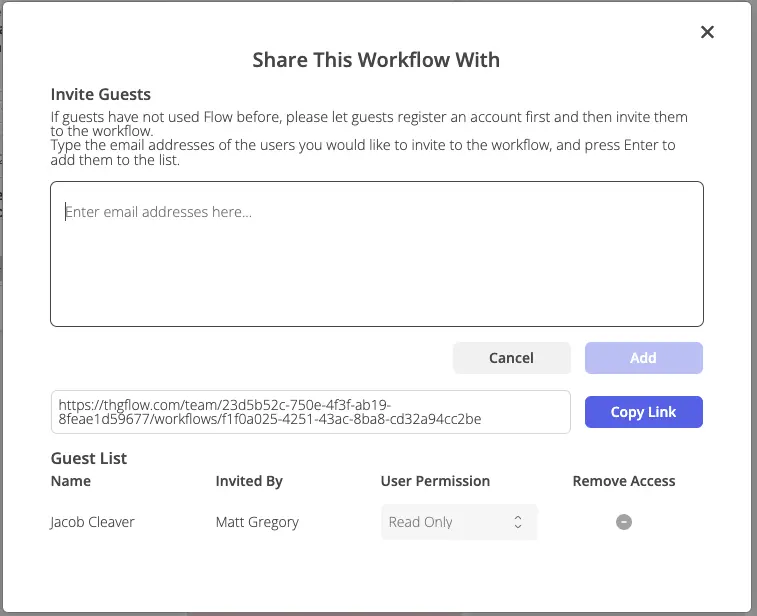
It’s possible to share a single workflow with users of your organisation, you can do this by pressing the share button next to the workflow name. This will enable specific users to see task statuses in a readonly mode. It can be very useful when keeping stakeholders up to date with progress.